
DeepChat - Commercial-Friendly Full-Featured AI Agent Client
DeepChat guide — connect this open-source, commercial-friendly full-featured AI Agent client to TokenFuel API and import DeepChat configuration with DeepLink in one click.
Chat Settings Options
In the TokenFuel API console, go to System Settings -> Chat Settings and add the following shortcut option. It lets users fill DeepChat from the token management page with one click:
{ "DeepChat": "deepchat://provider/install?v=1&data={deepchatConfig}" }DeepChat is an open-source, cross-platform, commercial-friendly full-featured AI Agent client. It supports cloud and local models, MCP tool calls, Skills, ACP, Agent integration, and remote-control workflows, making it suitable for users who need unified Provider management and advanced AI Agents.
- Official Website: https://deepchat.thinkinai.xyz
- GitHub Repository: https://github.com/ThinkInAIXYZ/deepchat
- Download Address: https://deepchat.thinkinai.xyz/#/download
NewAPI Integration Method
Method 1: One-Click Import
-
In the TokenFuel API console sidebar, open Token Management and find the token you want to use
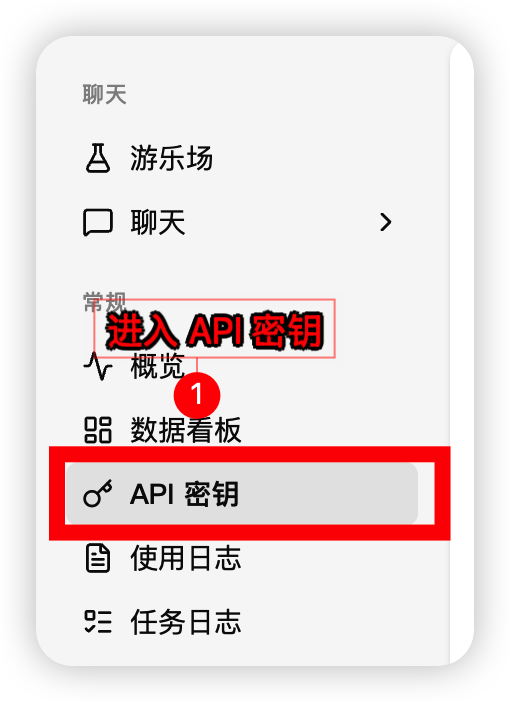
-
Select DeepChat from the token actions
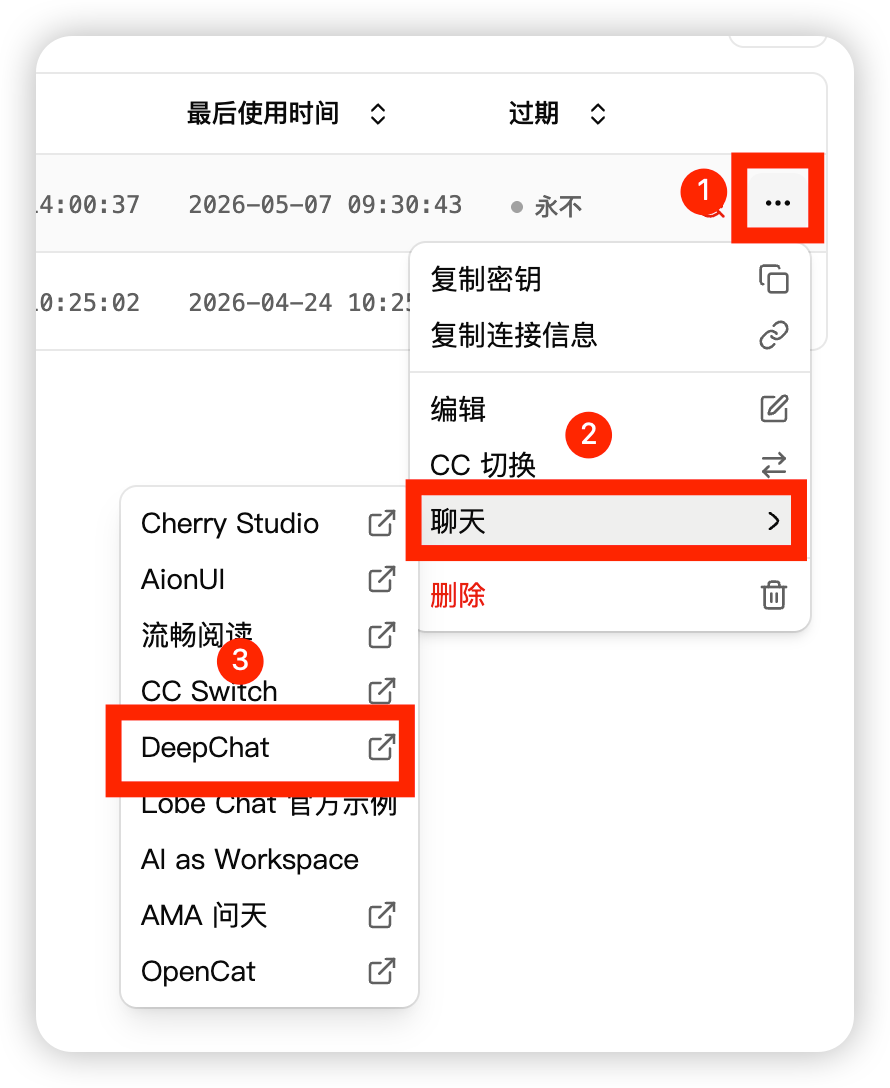
-
Let the browser launch DeepChat and confirm opening the app
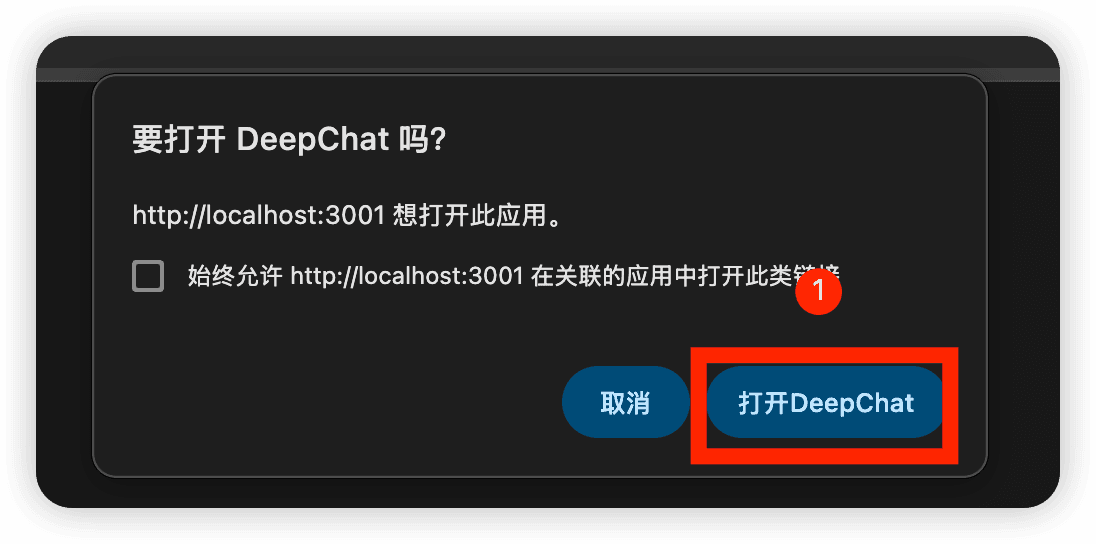
-
Confirm the configuration in DeepChat's Provider import preview
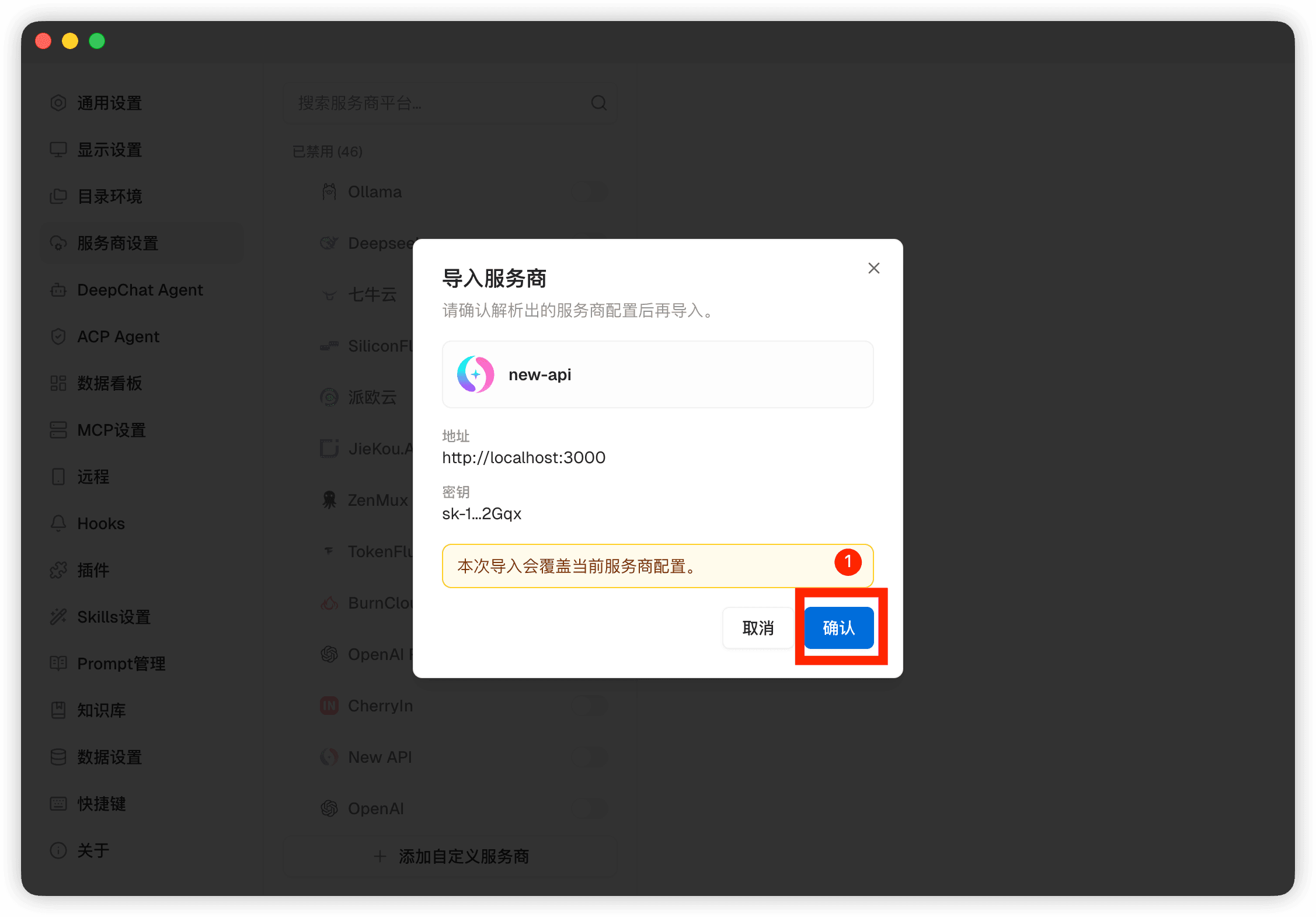
-
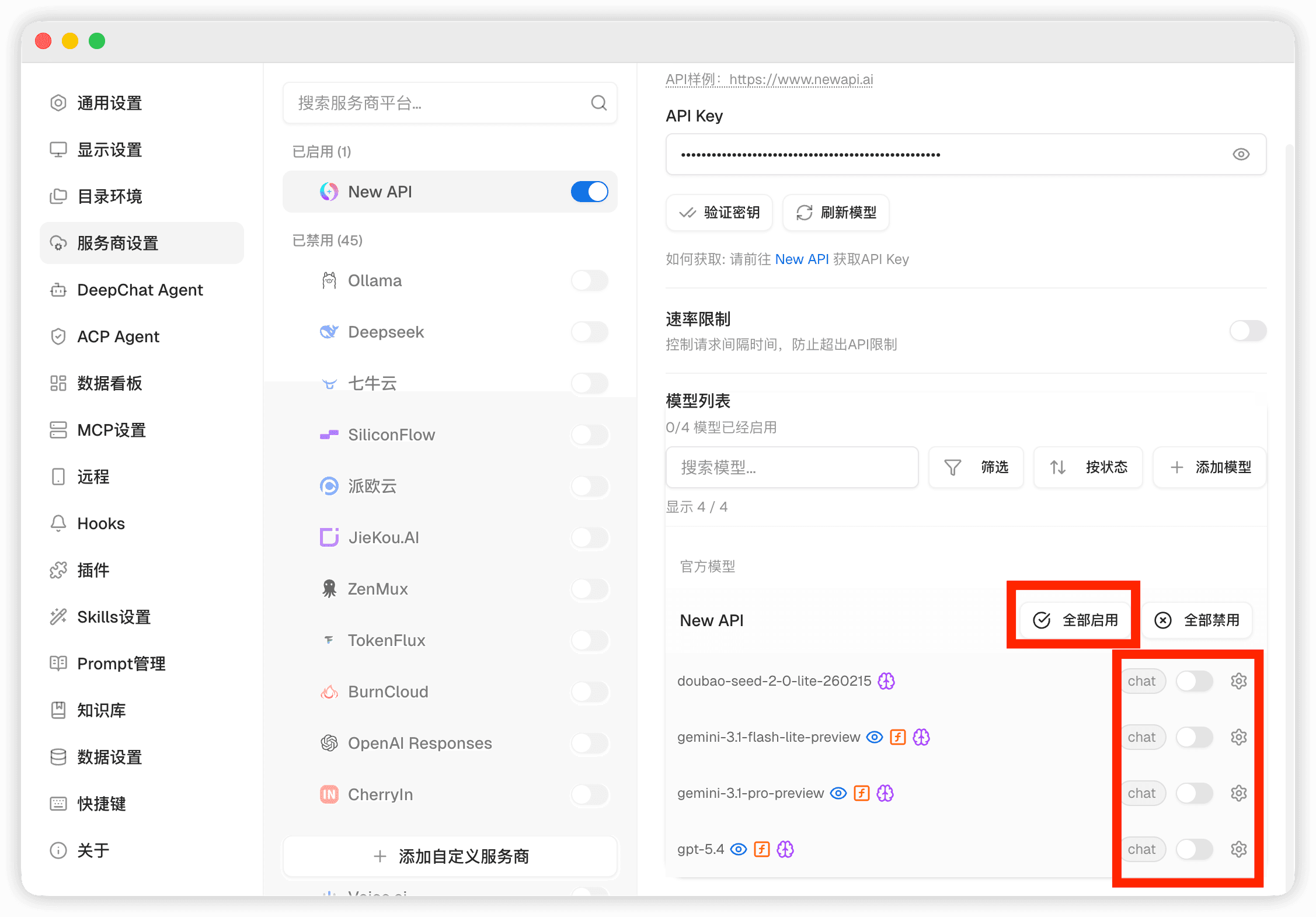
Open the model list and select a TokenFuel API model to start using it
Method 2: Manual Import
-
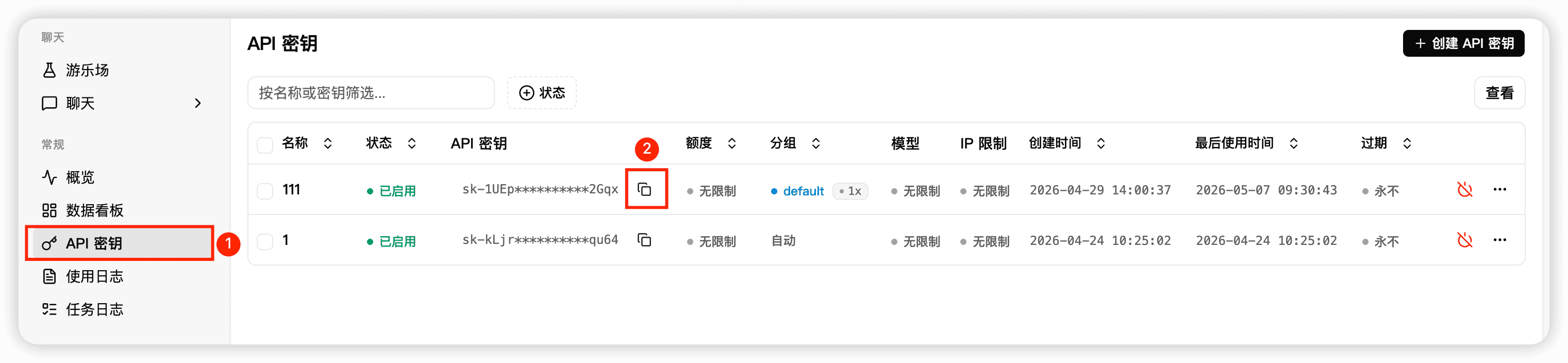
Copy the API Key and site address from the TokenFuel API console
-
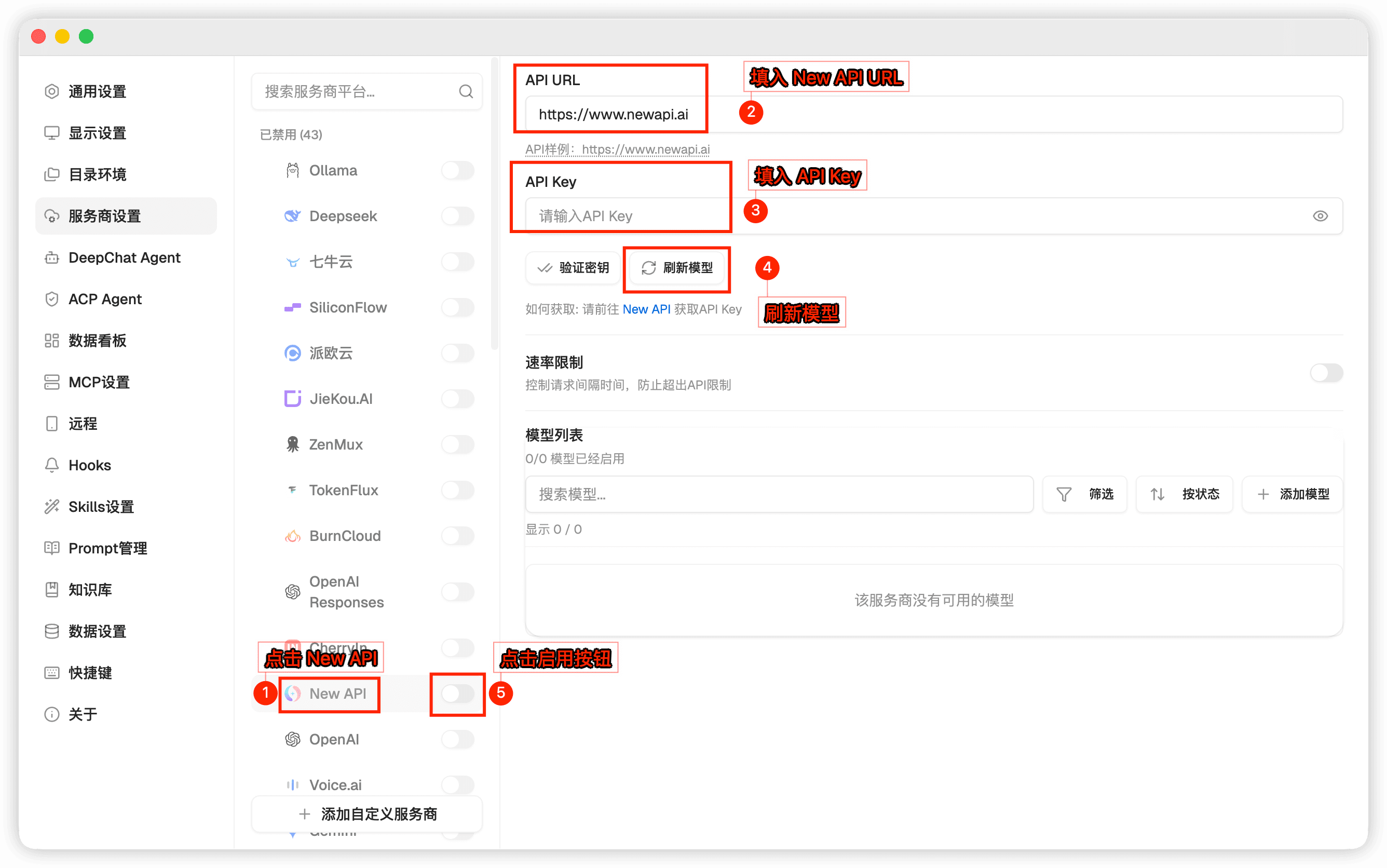
In DeepChat settings, add or edit the TokenFuel API Provider, then fill in the API address and API Key
-
Open the model list and select a TokenFuel API model to start using it
Related Links
How is this guide?
Cherry Studio - Desktop AI Client
Cherry Studio Tutorial — Connecting the desktop AI client to TokenFuel API, one-click API Key entry. Built-in 30+ professional AI assistants, covering various work scenarios.
FluentRead - Open Source Translation Plugin
FluentRead configuration guide — open-source browser translation plugin with 20+ engines and AI model support. Connect to TokenFuel API for immersive bilingual reading.